- product
- kanban
Introducing Planpad: a simple Kanban board for small teams
What Planpad is, who it is for, and a quick tour of boards, cards, due dates, reminders and reports.
By The Planpad team · · 3 min read
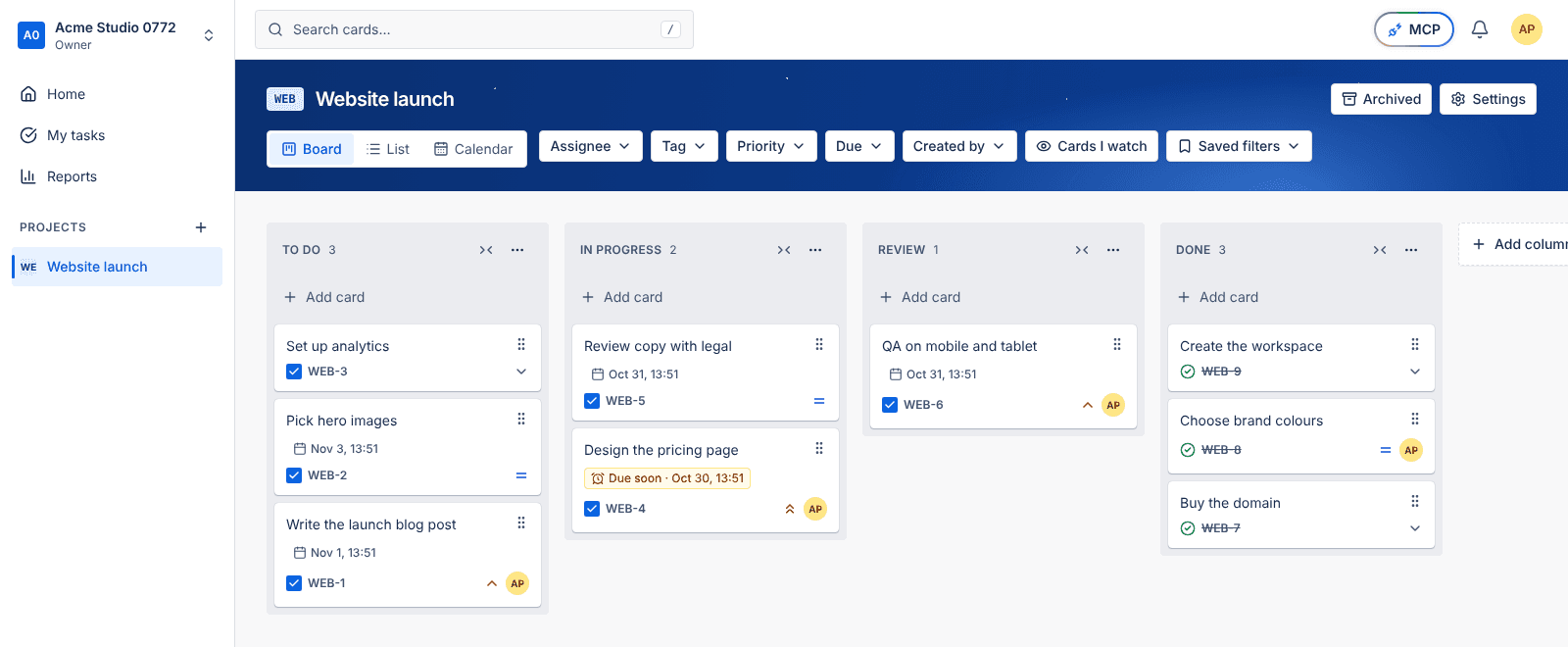
Most small teams don't need a heavyweight project tool. They need one place where everyone can see what is being worked on, who has it and when it is due. That is what Planpad is for: a Kanban board that stays out of your way, so the team can spend its time on the work rather than on the tool.
Workspaces and projects
Everything starts with a workspace, your team's home. Inside it you create projects, each
with a short key such as WEB or OPS. Cards in a project are numbered with that key, so WEB-12
always means the same card and makes a handy link to share in chat.
A project can be visible to the whole workspace or kept private to the people you add to it.
The board
Every new project comes with four columns: To Do, In Progress, Review and Done. You can rename, reorder, add and remove columns to match how your team actually works, as long as at least one Done column remains.
Drag cards between columns to move work along, or use the keyboard if you prefer. Everyone looking at the board sees the change within a few seconds, without refreshing the page.
Everything on the card
Open a card and you'll find the details in one place:
- a title and a description written in Markdown
- an owner, plus watchers who want to follow along
- a priority and colour-coded tags
- a due date, with an optional time
- checklists for the smaller steps
- files, attached straight to the card
- comments, where you can
@mentiona teammate to bring them in - an activity history showing who changed what, and when
Staying on top of dates
Cards that are due soon or overdue are flagged on the board, with a text label as well as a colour, so nothing depends on colour alone. My tasks gathers everything assigned to you in one list. You can set reminders on a card and get notified when you're assigned or mentioned, in the app and by email, with a choice of which notifications you want. A daily digest at 08:00 your time sums up what needs attention, and is skipped on days when there's nothing to say.
Other ways to look at the work
The board isn't the only view. The list view lets you sort and edit cards in a table, the
calendar shows cards by due date and lets you drag them to a new day, and global search (press
/) finds cards by key, title or description across every project you can see. Filters for owner, tag, due date and priority are kept in the
page address, so a filtered view can be bookmarked or shared.
When you need the bigger picture, reports show current progress and completed work, with sorting, filters and an Excel download.
A few nice touches
- Works with Claude: connect Claude through MCP and it can list, create and update cards for you.
- Make it yours: pick one of five calm colour themes. Your choice is saved for you alone.
- Your data stays yours: you can export your data or delete your account from your profile.
Getting started
Sign up, name your workspace, create your first project and add a few cards. Then invite your team by email and give each person the right role; our guide to roles explains how they work.
Start your free trial and put your first card on the board.